Column Visibility
Show or hide columns in Plan Builder to focus your view and speed things up.
What is Column Visibility?
- definition: Choose which columns appear in your Plan Builder grid so you can focus on what matters.
- why it helps: Less visual clutter, faster scanning, and smaller data loads when you hide fields you don’t need.
How it works in the UI
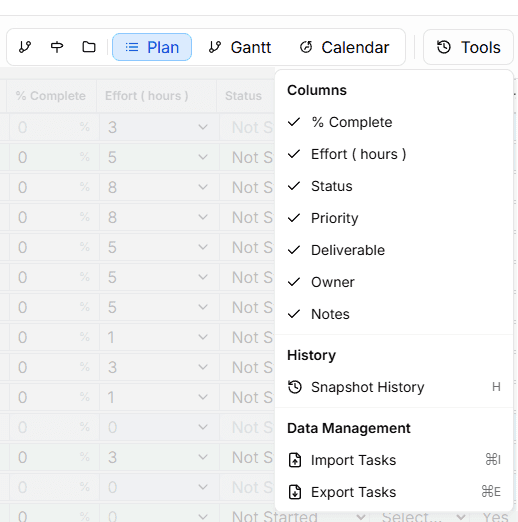
Toggle columns
- Open the toolbar and click Columns.
- Check or uncheck the fields you want to see.
- Changes apply immediately to the grid.
Persistence
- Local: Saved in your browser for instant load next time.
- Account sync: Also saved to your layout so preferences follow you across devices.
- Per context: Stored separately per project and per objective.
Available columns
Always visible (cannot hide)
- ID
- Task Name
- Duration (working days)
- Start
- Finish
- Predecessors
These are core scheduling/identification fields and are always present.
Toggleable
- Owner
- Effort
- % Complete
- Status
- Notes
- Deliverable
Special Filters
- Milestones are controlled by the toolbar’s Milestones toggle, not the Columns menu.
- Level/indentation is shown via hierarchy, not as a column.
Column order
Columns follow a fixed order (ID → Task Name → Duration → Start → Finish → Predecessors → optional columns). The Predecessors column appears after Start and Finish to align with the CSV export format. You can't reorder columns in this version.
Performance benefits
- Smaller responses: The server only sends fields for the columns you’re viewing.
- Faster loads: Less data to download and render, especially on large plans.
- Good on mobile: Hide optional columns to keep scrolling smooth.
Typical impact on large plans (100+ tasks): noticeably faster loads when you show fewer columns.
Notes about Calendar view
- Column visibility doesn’t change how dates are computed; the calendar uses each task’s Start/Finish and Duration to render.
- Milestone visibility is controlled by the toolbar Milestones toggle (not the Columns menu).
- If a task has only Start or Finish, the missing date is inferred from Duration using business‑day rules; milestones render as single‑day points.
Tips & troubleshooting
- Preferences didn’t save? Ensure your browser allows local storage; then try again.
- Don’t see “Milestone” in Columns? That’s expected use the Milestones toggle in the toolbar.
- Can I save multiple presets? Not yet. Switch quickly via the Columns menu as needed.
Last updated: 2025-10-24