Critical Path
Learn about the Critical Path in Plan Builder - what it is, why it matters, and how to use it effectively in your project planning.
What is the Critical Path?
- definition: The critical path is the chain of linked tasks that determines the project's finish date. Any delay on a critical task delays the entire project.
- zero‑slack rule: A task is critical when its total slack is 0 days. Slack is the amount of time a task can slip without pushing the project finish.
Why track the Critical Path?
- finish predictability: Focus on the tasks that directly drive your end date.
- prioritization: Allocate resources to critical tasks first; optimize non‑critical tasks that have slack.
- early warnings: As schedules change, the critical path can shift; surfacing it helps you react quickly.
How it's calculated
- engine: We compute CPM (Critical Path Method) from your plan using Finish‑to‑Start dependencies with optional positive lags.
- inputs:
- Task IDs, durations (days), optional start/finish dates, and predecessors.
- If duration is missing, we infer it from start/finish dates (inclusive business‑day count).
- outputs:
- Per task: ES*, EF, LS, LF *, and total slack (in days). Tasks with slack = 0 are critical.
- Project duration: the total length of the longest chain.
- business days:
- Scheduling respects working days/hours. Starts/finishes are adjusted to the next valid business day/time when needed.
- Milestones are zero‑duration tasks and stay on a single business day.
Notes:
- If two paths tie for longest duration, multiple tasks can simultaneously be critical. The UI highlights all zero‑slack tasks.
Plan Builder specifics
- Toggle in toolbar: Use the Critical Path button in the toolbar to highlight zero‑slack tasks directly in the grid.
- Gantt: When Gantt is visible, critical items render in a distinct red color. Slack days are available for tooltips and legends.
See the Critical Path in the UI
You can work in either the grid (table) or the Gantt view. Both are synchronized.
In the Gantt Chart:
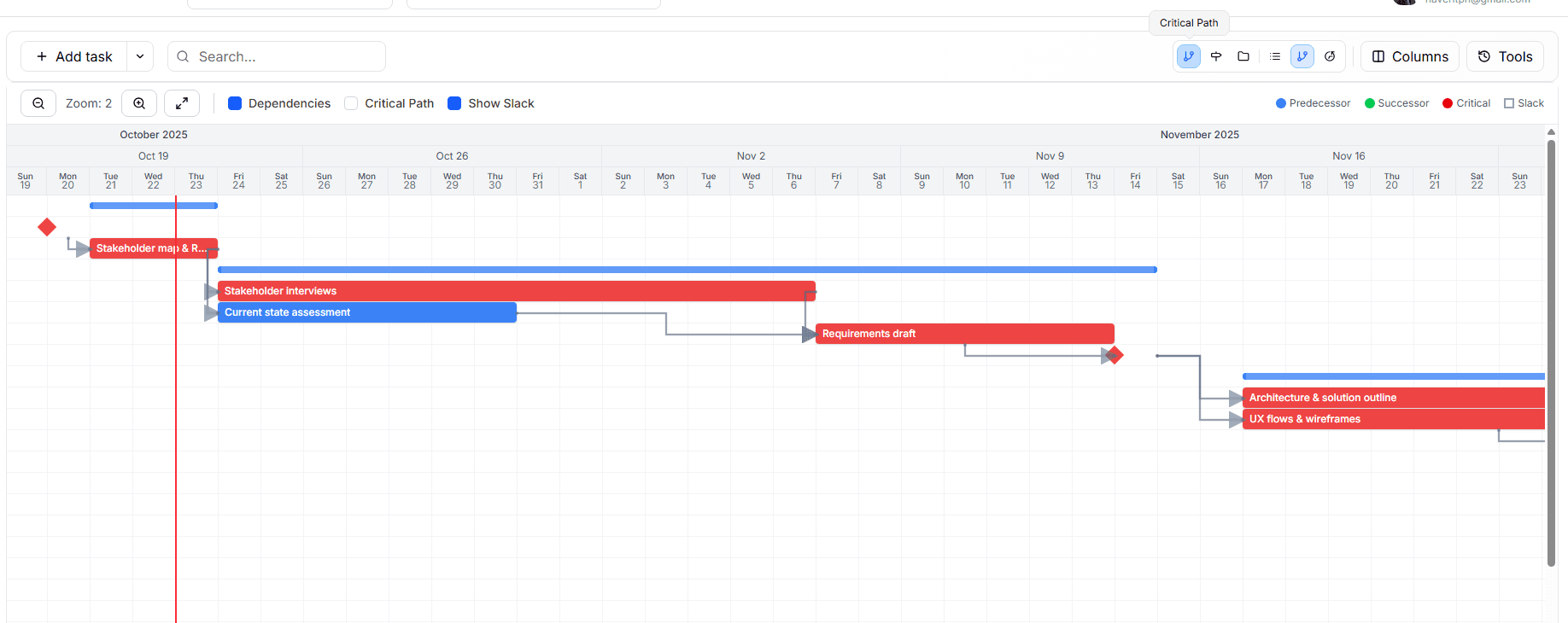
- Highlight critical: Toggle the Critical Path button in the toolbar; critical bars are colored red.
In the Plan Builder:
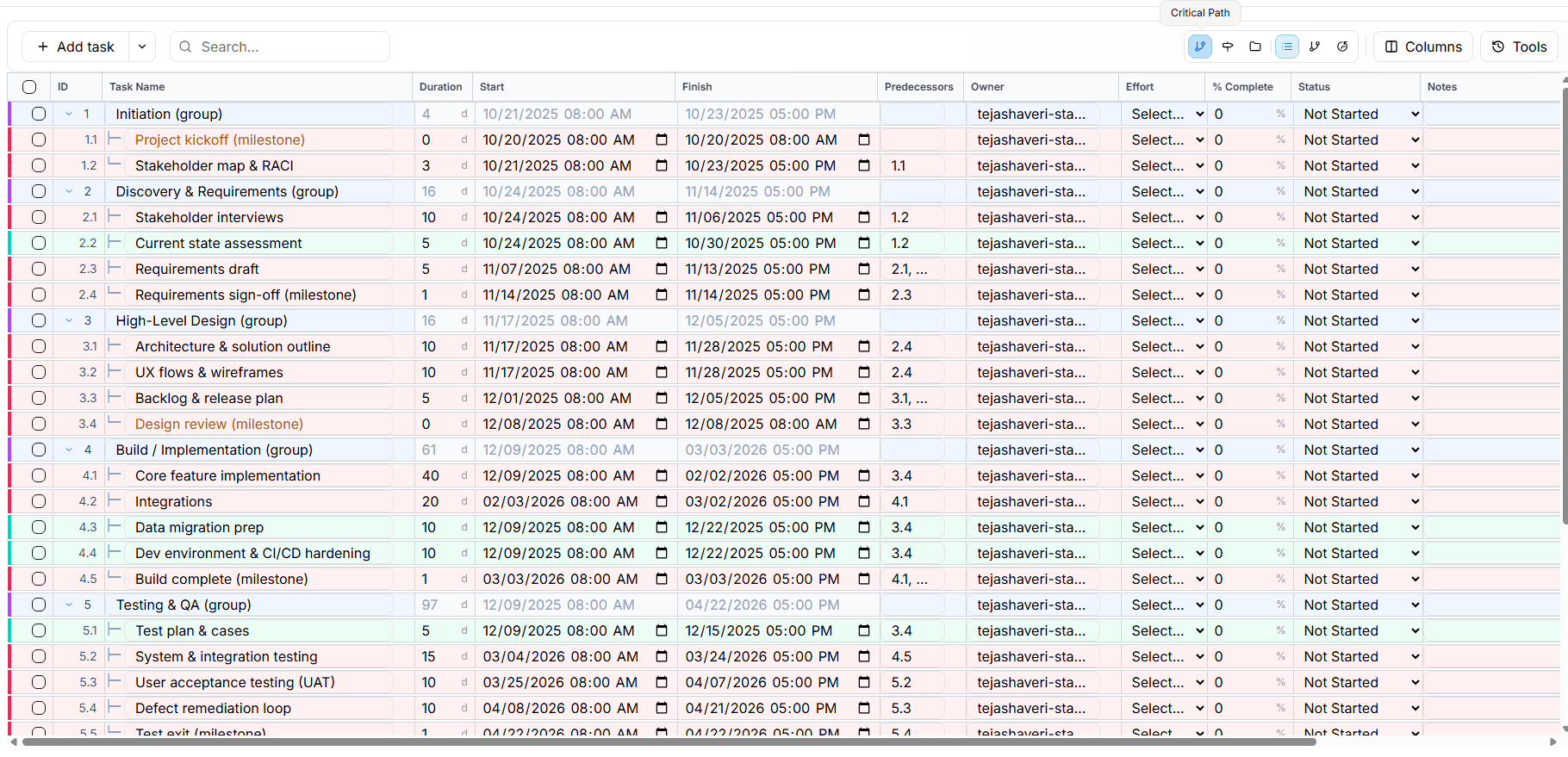
- Highlight critical: Turning this on applies a highlight to critical rows and shows a tooltip with slack days.
How to keep your project on time
- optimize slack first: Look for non‑critical tasks with slack > 0 and compress or parallelize them to create buffer without risking the end date.
- protect the path: Ensure owners are clear, risks are tracked, and blockers are removed for critical tasks.
- recalculate often: Editing dates, durations, or dependencies will automatically recompute CPM; the critical set may change.
FAQs
Can I mark a task as "critical" manually?
No. Criticality is determined automatically by the schedule math (slack = 0). Edit the plan (dates/durations/dependencies) to change which tasks are critical.
Can I edit ES/EF/LS/LF?
No. These values are computed. You can change task dates/durations and predecessors; the CPM values will update.
Why don't I see the critical options?
Make sure you are in Plan Builder and that the plan has at least one dependency chain. If the plan has no dependencies, all tasks effectively float and no critical set is produced.
Why does the critical path change?
As tasks complete, slip, or are re‑sequenced, a different chain may become longest. We recalculate after relevant edits.
Multiple critical paths?
If multiple chains have the same longest duration, tasks on all such chains will have zero slack and will be shown as critical.
Terms
- ES (Early Start): Earliest day a task can start based on predecessors.
- EF (Early Finish): ES + duration.
- LS (Late Start): Latest day a task can start without delaying the project.
- LF (Late Finish): LS + duration.
- Slack / Float: LS − ES. Zero means the task is critical.
Tips & troubleshooting
- If everything shows as non‑critical: confirm that tasks are linked via predecessors; without dependencies, there's no path to evaluate.
- If many tasks turn red at once: this can happen when parallel branches tie for longest; review the plan for opportunities to stagger or add buffers.
- Unexpected off‑business‑hour times: we align to working hours; the UI may adjust your inputs to the nearest valid start (08:00) or finish (17:00) on business days.
Last updated: 2025‑10‑24